
Android TV
GTV IPTV Android TV
Direct app download for Android TV devices.
Download AppFollow our device-specific setup instructions to get your GTV Television service up and running quickly and easily.
Use the recommended GTV app or player for your device, then enter the login details from your welcome email.
Direct app download for Android TV devices.
Download AppDirect app download for Android phones and tablets.
Download AppIPTVX requires a premium in-app purchase.
Open www.gtv.it.com in your web browser.
Open Web PlayerInstall IPTV Smarters Pro from your TV app store.
Follow along with the setup video for your device.
Android phone, tablet ya TV Box par GTV app install aur login.
Samsung TV par IPTV Smarters Pro install aur login (LG TV bhi).
Watch our step-by-step installation video for Android.
Coming SoonOn your Android phone or tablet, use the official download link shown above: aftv.news/2488319. Download and install the GTV Android app.
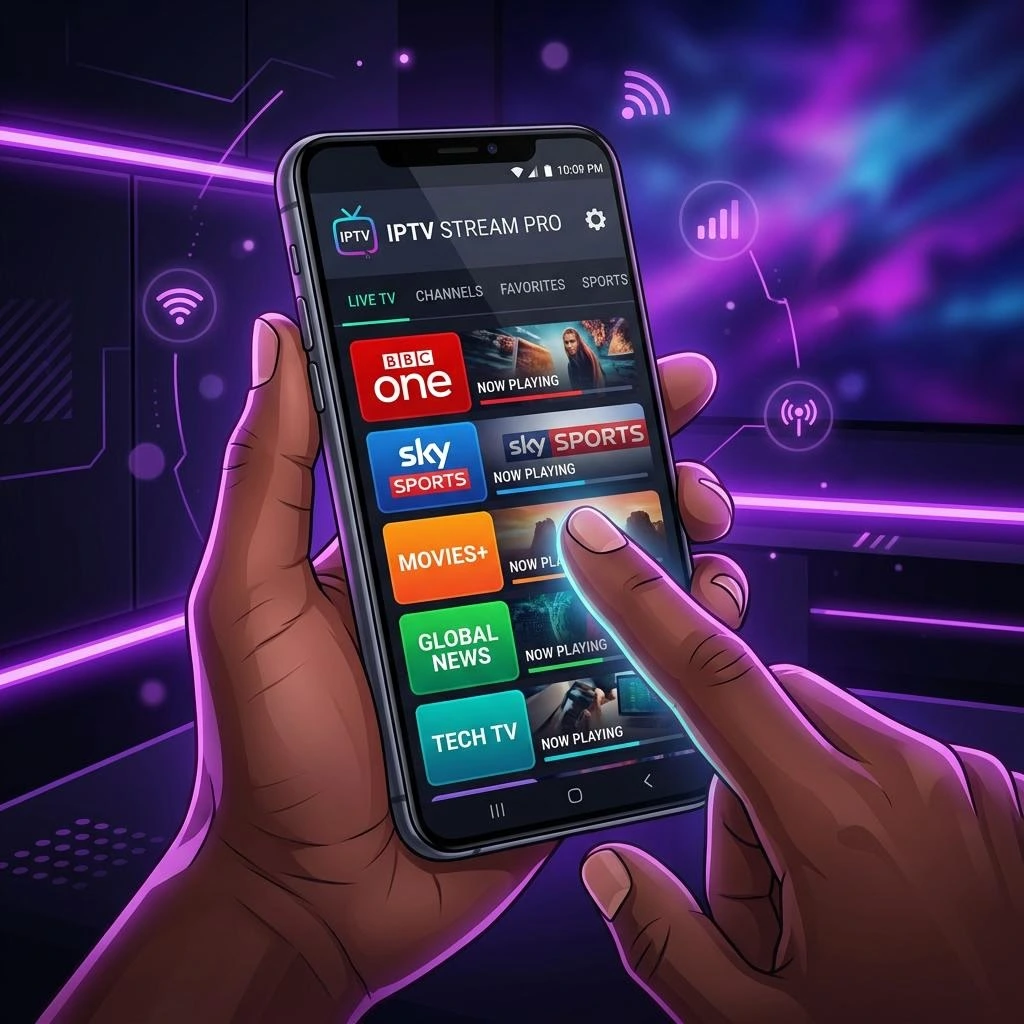
Launch the installed IPTV player app. On the main screen, look for an option to add a new account or playlist.
Select the option to add an M3U URL or Xtream Codes login. Enter the server details provided in your GTV Television welcome email.
The app will connect to the server and load your channel list. This may take a moment depending on your connection.
Browse the loaded channels, movies and series and start streaming. Your full content library is now available.
If you're having trouble with your setup, our support team is ready to help you get started.
Watch our step-by-step installation video for Android TV.
Coming SoonOpen Downloader or a browser on your Android TV and enter aftv.news/8773332. Download and install the GTV IPTV Android TV app.
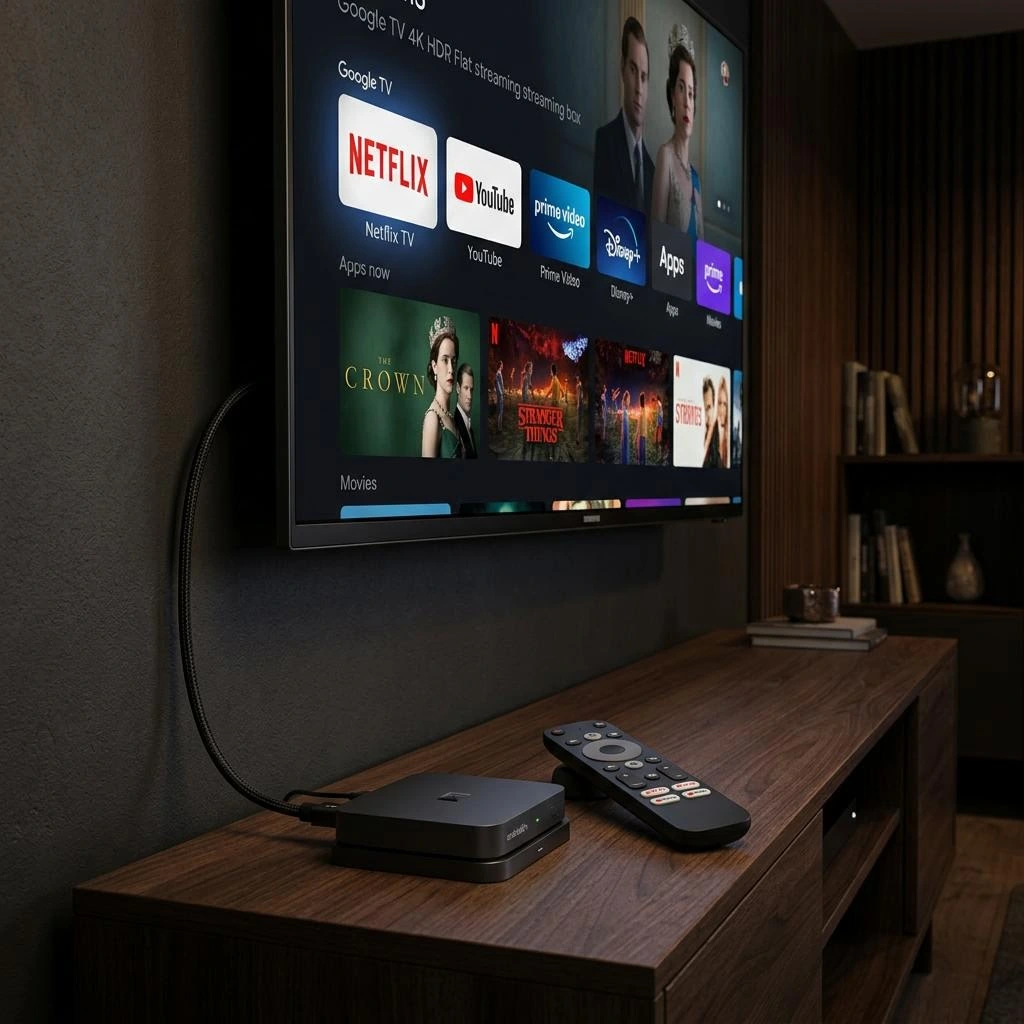
Open the installed application from your apps menu. Use your remote or keyboard remote to navigate.
Select Add Account or Add New User. Enter your Xtream Codes details from your GTV welcome email.
Wait for the content to load. Navigate through Live TV, Movies, and Series tabs.
You are now set up. Use your remote to browse and play your favourite content.
If you're having trouble with your setup, our support team is ready to help you get started.
Watch our step-by-step installation video for Fire TV / Firestick.
Coming SoonGo to Settings → My Fire TV → Developer Options. Enable Apps from Unknown Sources and ADB debugging.
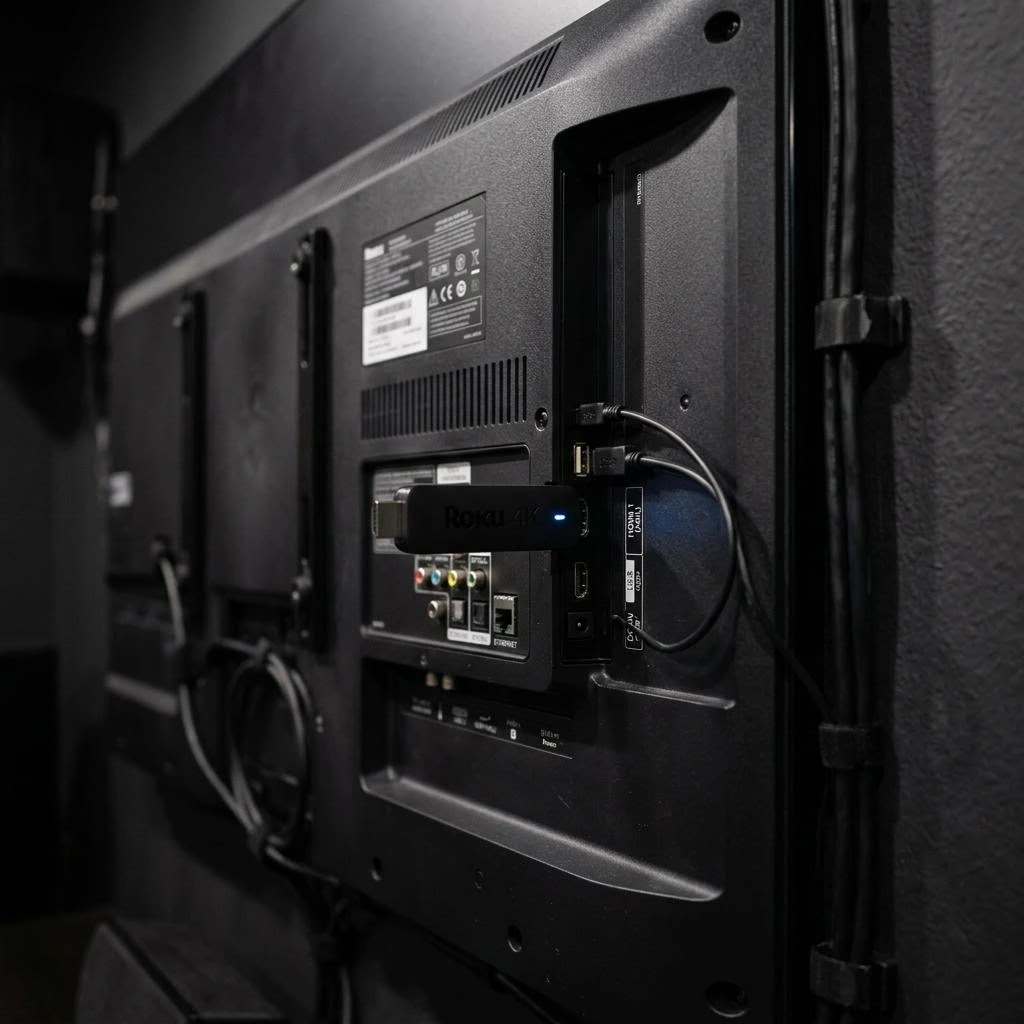
Search for "Downloader" in the Amazon Appstore and install it. This allows you to install apps not in the Appstore.
Open Downloader and enter the URL for your IPTV player APK. The download and install will complete automatically.
Launch the app and enter your GTV Television server URL and credentials from your welcome email.
Your content is now loaded. Use your Firestick remote to navigate Live TV, Movies, and Series.
If you're having trouble with your setup, our support team is ready to help you get started.
Watch our step-by-step installation video for TV Box.
Coming SoonPlug your TV Box into your TV via HDMI. Connect it to the internet via ethernet or Wi-Fi.
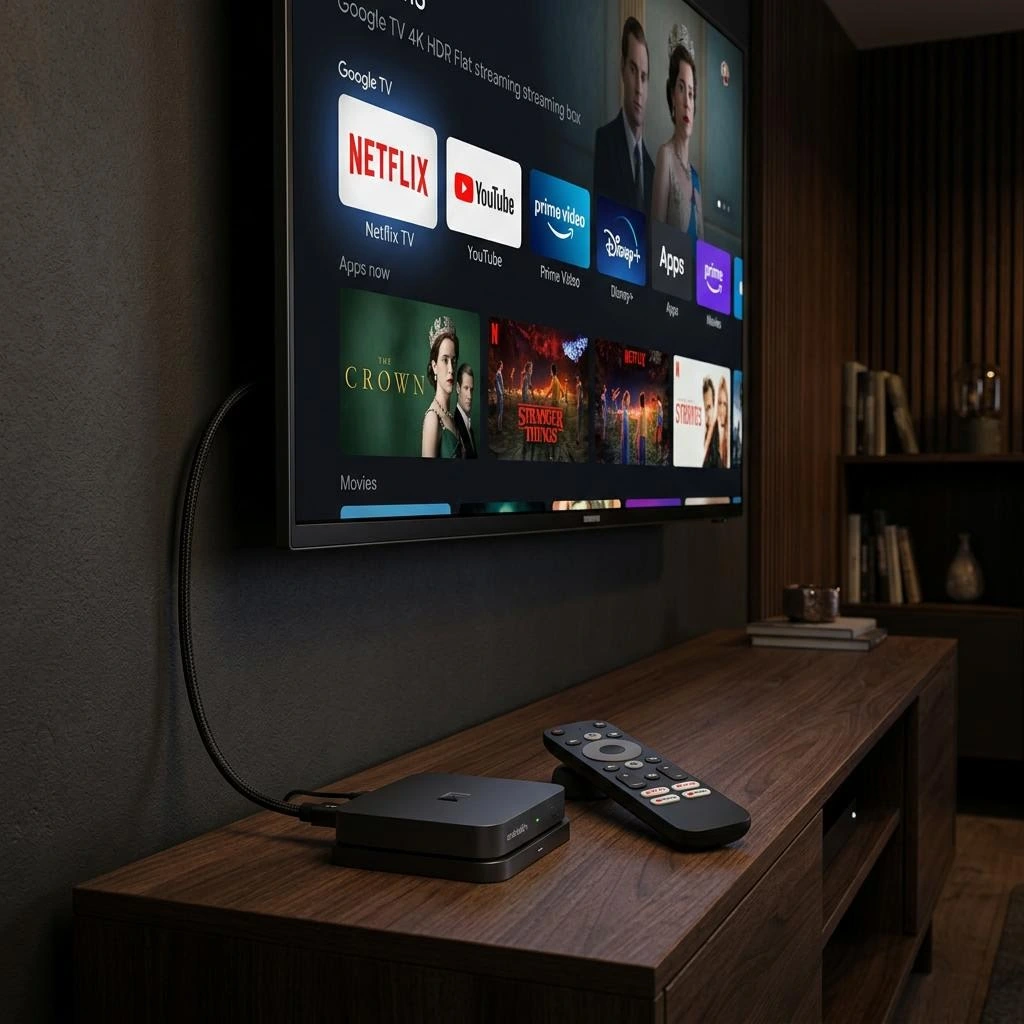
Use the Play Store or file manager to install your preferred IPTV player. If using the GTV Box, the app may be pre-installed.
Launch the app and select Add Account. Enter your credentials from your GTV welcome email.
Wait for your channels, movies and series to load from the server.
All your content is ready. Use your remote to navigate and select what to watch.
If you're having trouble with your setup, our support team is ready to help you get started.
Watch our step-by-step installation video for TV Stick.
Coming SoonInsert the GTV Stick into an available HDMI port on your TV and connect the power cable. Switch your TV input to the correct HDMI source.
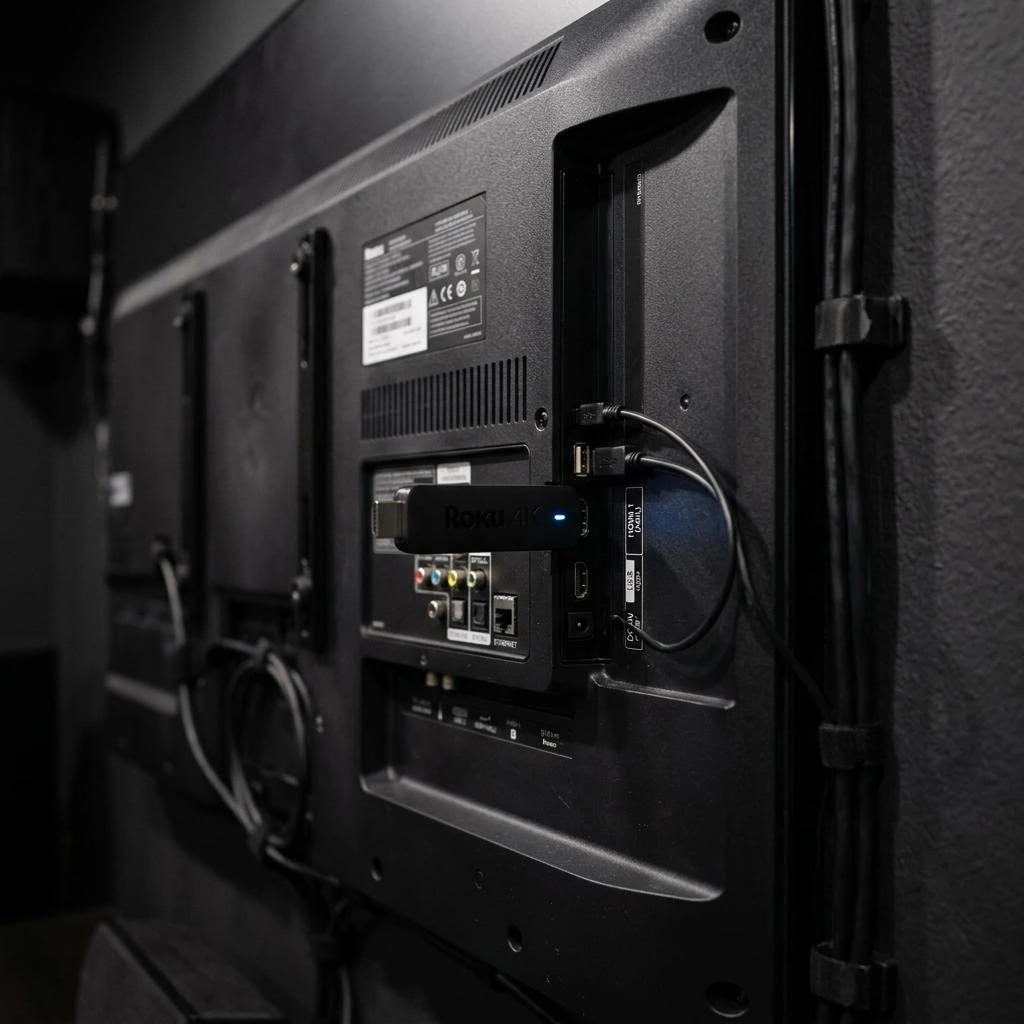
Follow the on-screen setup to connect your TV Stick to your home Wi-Fi network.
Install or open the pre-installed IPTV player app and select Add Account.
Enter the Xtream Codes or M3U URL details from your GTV welcome email.
Your content library is now loaded and ready to stream.
If you're having trouble with your setup, our support team is ready to help you get started.
Watch our step-by-step installation video for Smart TV.
Coming SoonOn your Samsung or LG TV, open the TV app store, search for IPTV Smarters Pro, and install it.
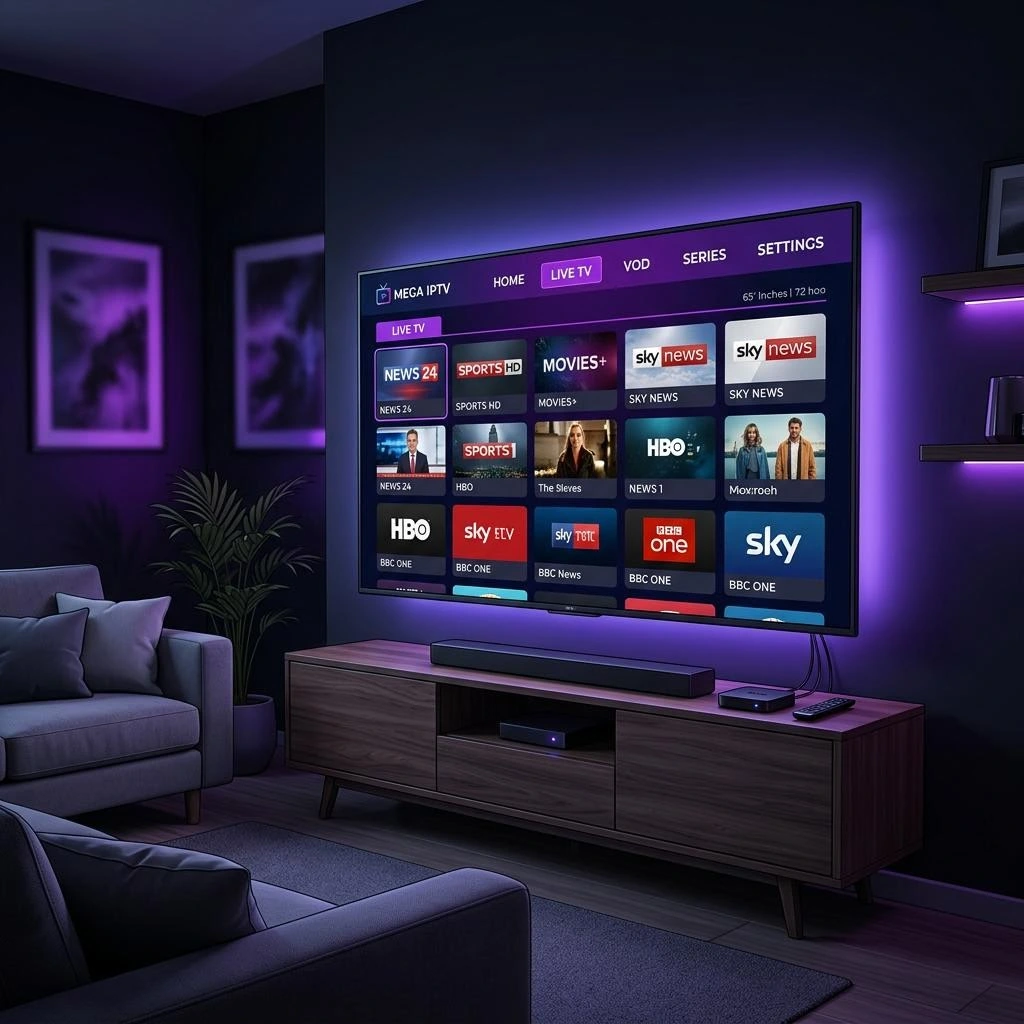
Launch IPTV Smarters Pro and select the option to add a new user with Xtream Codes API.
Enter the username, password and server URL provided in your GTV welcome email.
Allow the app to load your live channels, movies and series.
Navigate through your channels and content library from your Smart TV remote.
If you're having trouble with your setup, our support team is ready to help you get started.
Watch our step-by-step installation video for iOS / Apple.
Coming SoonOn your iPhone or iPad, install Smarters Player Lite or IPTVX from the App Store. IPTVX requires a premium in-app purchase.
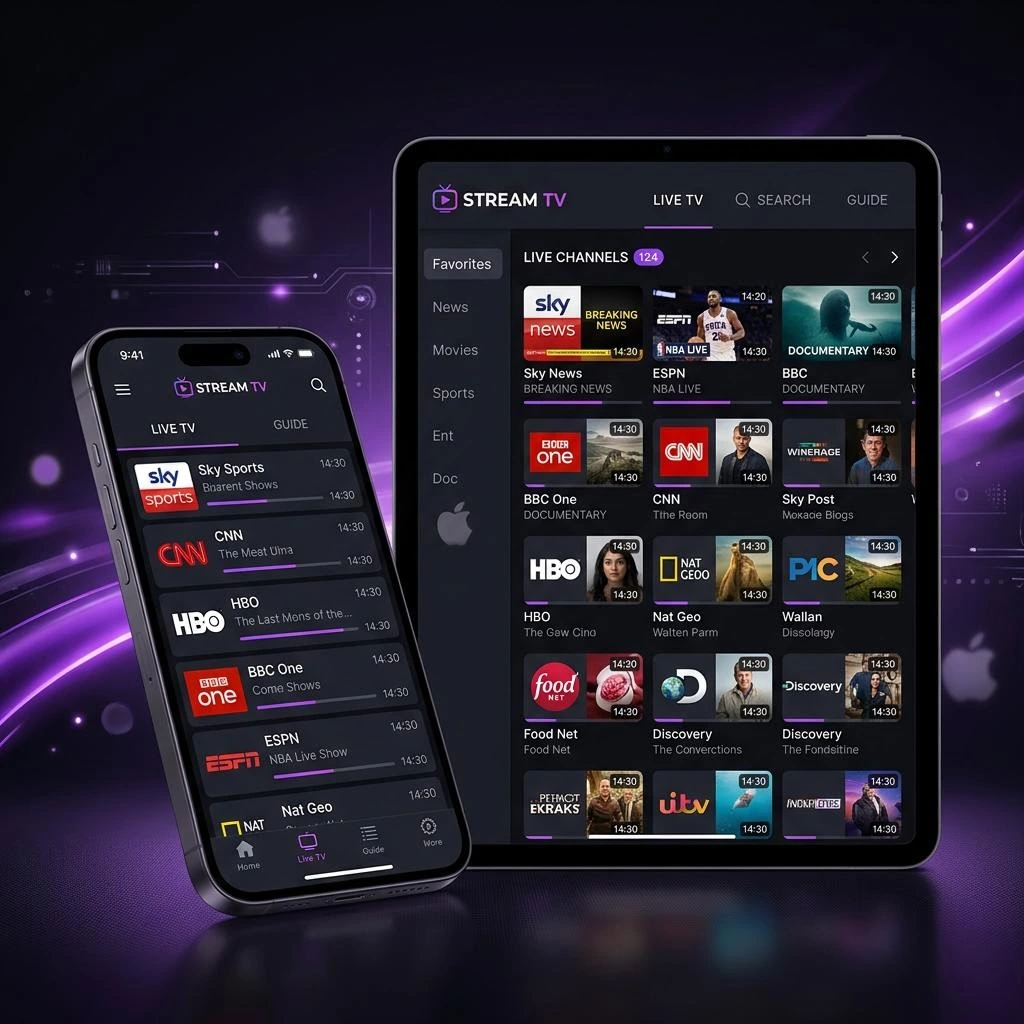
Launch the IPTV app. Tap the menu icon and look for Add Playlist or Remote Playlists.
Tap Add M3U URL or Xtream Codes. Enter the details from your GTV welcome email.
The app will download and process your playlist. This may take a moment.
Browse Live TV, Movies, and Series tabs. Tap any item to begin streaming.
If you're having trouble with your setup, our support team is ready to help you get started.
Watch our step-by-step installation video for Windows / Mac.
Coming SoonOn your laptop, Mac or PC, open a web browser and visit www.gtv.it.com. No separate player installation is required.
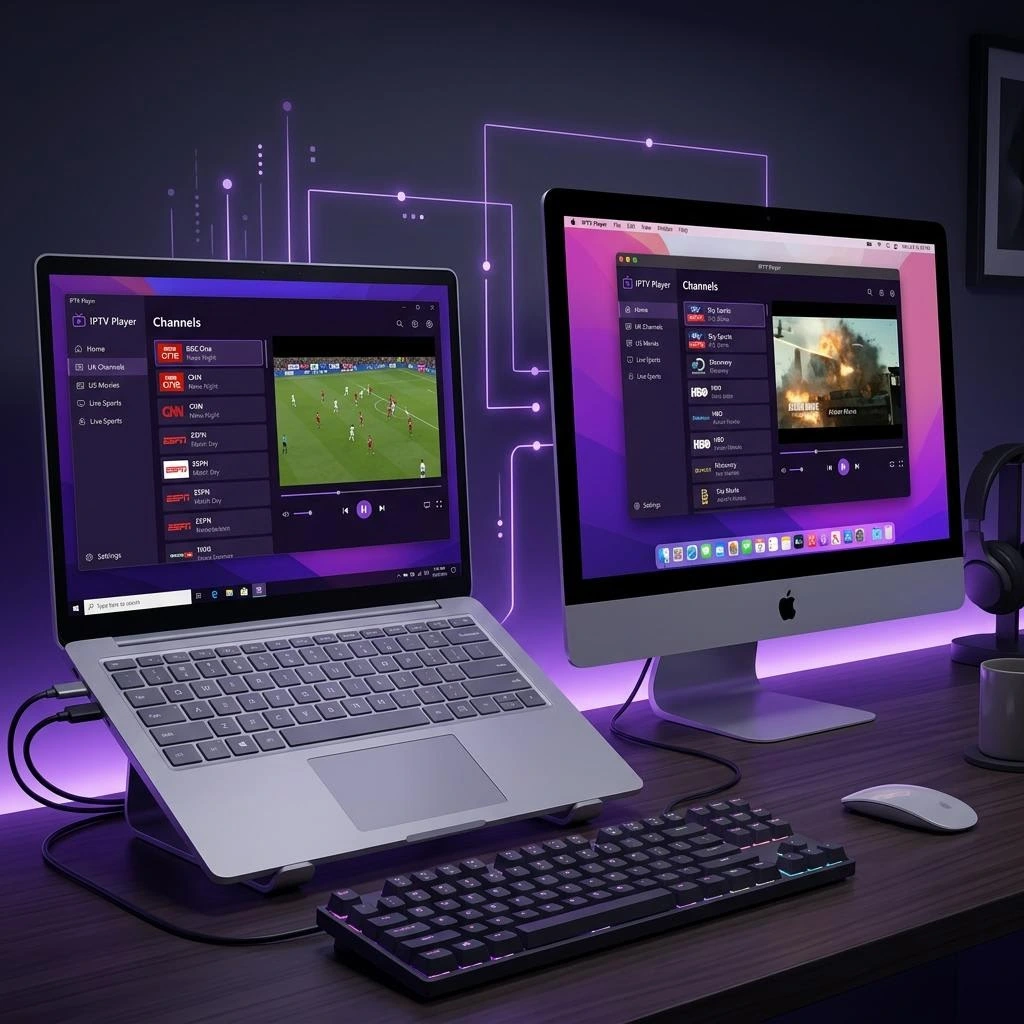
Sign in using the GTV username and password supplied in your welcome email.
Browse Live TV, Movies or Series from the web player menu.
Your playlist will load. You can now browse channels, movies and series.
Select any channel or title to begin watching on your Windows or Mac device.
If you're having trouble with your setup, our support team is ready to help you get started.
Watch our step-by-step installation video for MAG / Compatible.
Coming SoonConnect your MAG box or compatible device to your TV via HDMI and connect to the internet via ethernet or Wi-Fi.
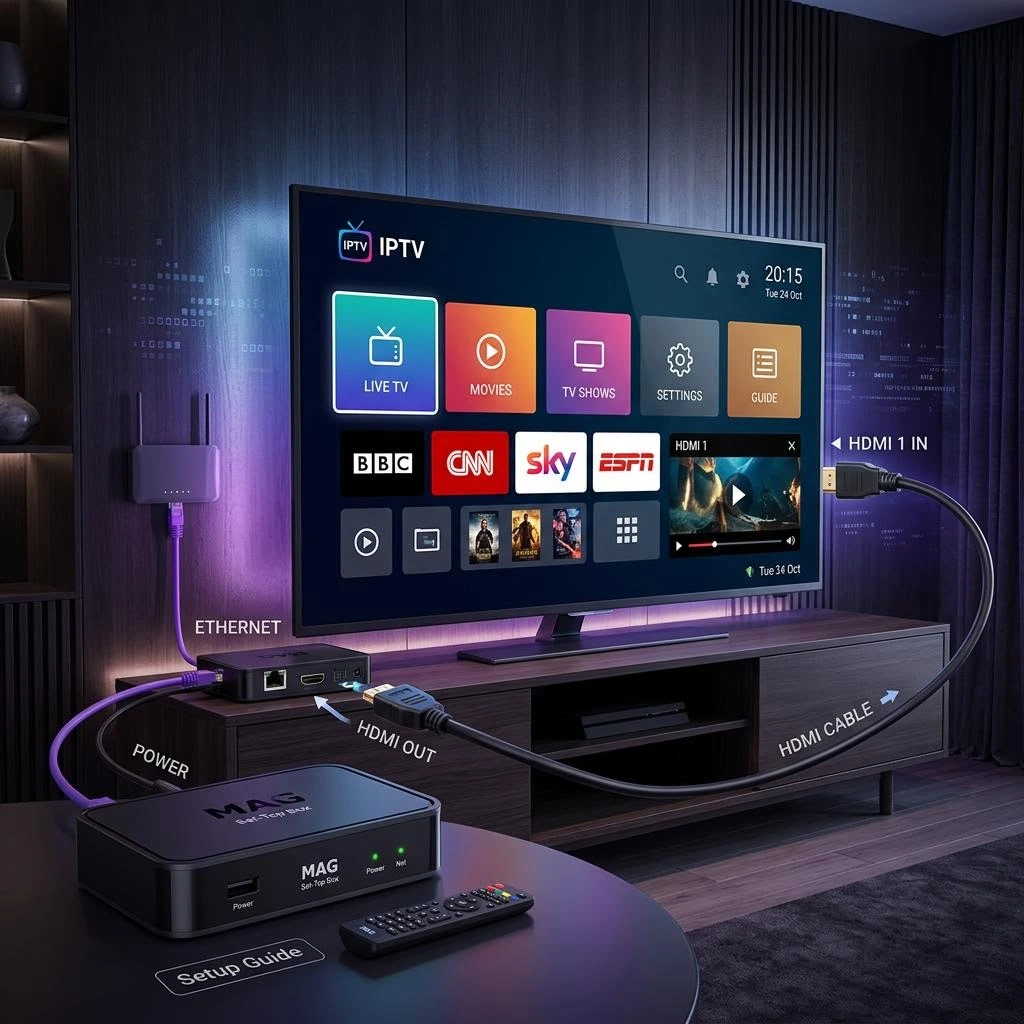
On your MAG remote, press the Setup button to open the settings panel.
Navigate to System Settings → Servers → Portals. Enter the portal URL provided in your GTV welcome email.
Save the settings and reboot your MAG device. It will automatically connect to the portal.
Your MAG device will load the portal with your full channel list and VOD library.
If you're having trouble with your setup, our support team is ready to help you get started.